LM Studio is a desktop app for discovering, downloading, and running open-weight language models on your own machine.
Open-weight means the model’s trained parameters (the “weights”) are published so you can download them and run them yourself — unlike a cloud-only API where you never get the files. It is related to open source, but not the same thing: the weights might be available under a licence that still restricts commercial use or redistribution, so check the model card before you ship anything.
Inference is what happens when you actually use the model: you send a prompt (and maybe a system message), it runs the maths stored in the weights, and it produces tokens back — the words you see in chat, or JSON if you asked for structured output. Training is the expensive one-off job that creates the weights; inference is the thing you do on every message. LM Studio is almost entirely about inference on your PC. There is no per-token bill from a cloud vendor for that step — you pay in disk space, RAM, electricity, and patience while a multi-gigabyte download finishes.
Quantisation is a way to shrink the weight files by storing numbers with fewer bits (less precision). A Q4 build is roughly 4-bit quantisation: much smaller on disk and often faster to run, with a small drop in quality compared with full FP16 (16-bit) weights. Names like Q4_K_M are specific recipes — you do not need to memorise them; treat them as “this is a popular compressed variant” unless you are benchmarking. For a first model on a laptop, a Q4 instruct build in the single-digit GB range is usually the sensible choice.
You can use this as a way to play with LLM concepts and ideas without paying for licenses for Claude or Chat GPT. In this post I’m simply introducing this tool - I’ve written more on interacting with docker here.
What You Get
At a glance, LM Studio gives you:
- A model catalogue tied into community and publisher listings (search, sort, staff picks)
- A chat UI with per-session controls (temperature, context, system prompt, presets)
- A Developer view that runs a local HTTP server — OpenAI-compatible endpoints on port 1234 by default
- Optional hooks for MCP (Model Context Protocol) so the same app can talk to external tools while you experiment
You do need reasonable hardware. A 4B model in Q4 quantisation is approachable on many laptops; a 31B download at ~20 GB is a different commitment entirely.
Finding and Downloading a Model
After install, the discover/search flow is where most people start. Search for a family (here, gemma), browse results on the left, and open the detail pane on the right.
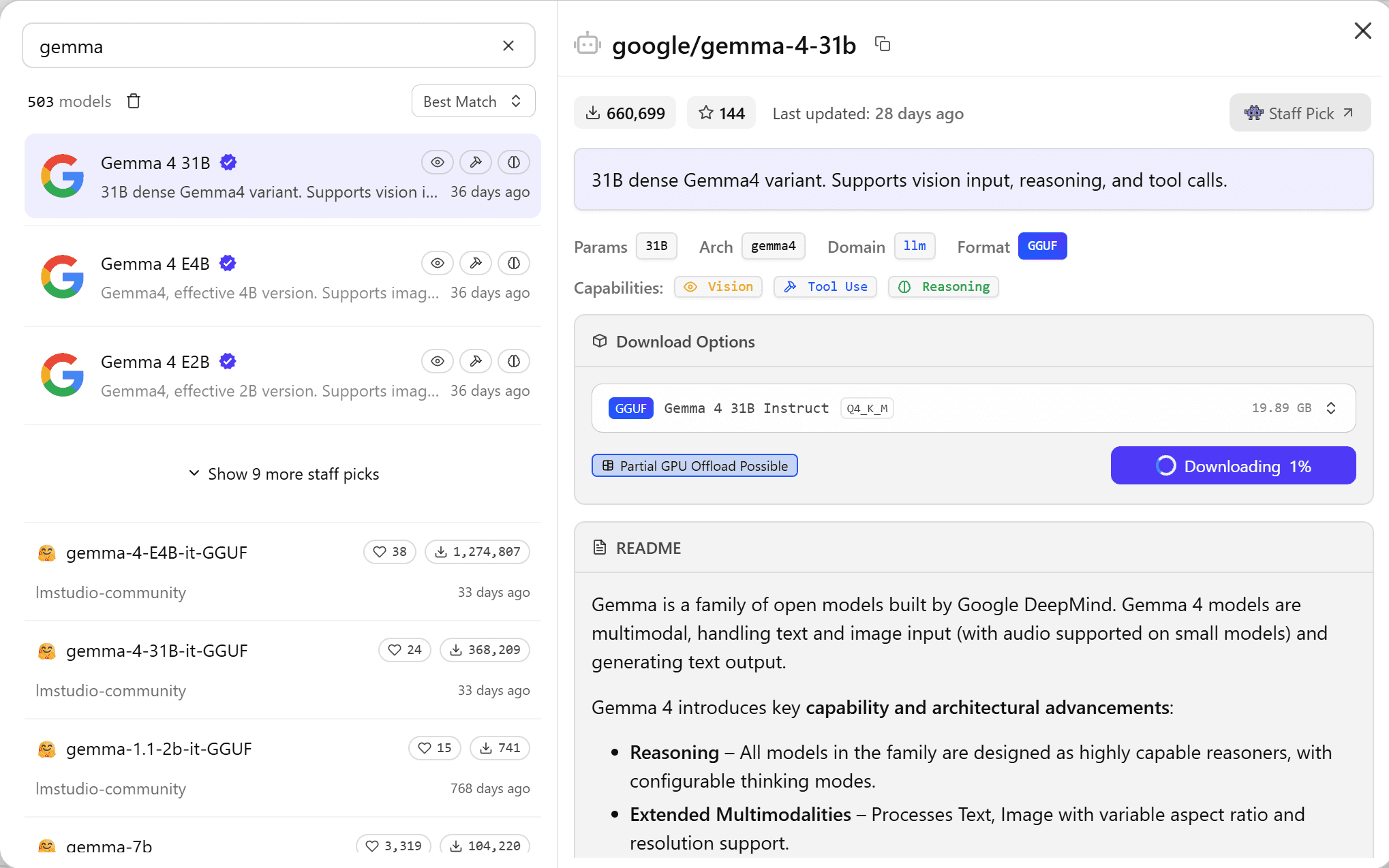
The detail view is worth reading before you click download:
- Publisher and variant — e.g.
google/gemma-4-31bwith parameter count and architecture - Format — typically GGUF, the common file packaging for running quantised weights locally
- Quantisation — the row you pick on download (e.g. Q4_K_M); see the explanation above
- Capability badges — vision, tool use, reasoning, depending on the model
- Hardware hints — file size and whether partial GPU offload is possible
Pick a quantisation row, hit download, and wait. Smaller instruct models (a few GB) are better first steps than the largest dense variants unless you know you have the VRAM.
Loading a Model and Opening Chat
Switch to the Chat tab (keyboard shortcut Ctrl+L to pick a model). Until something is loaded, the centre panel prompts you to open the model loader or reload the last model you used.
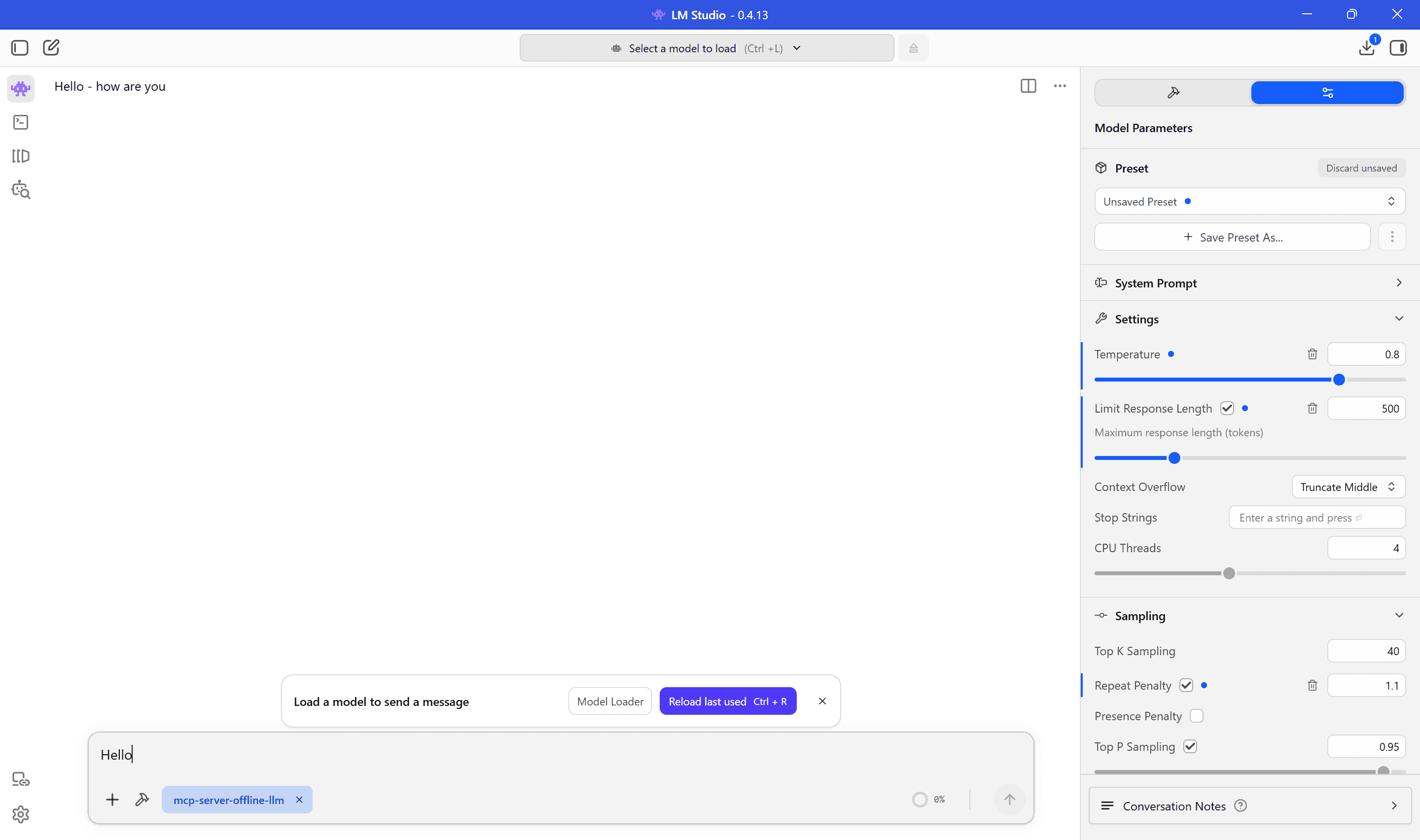
The right-hand rail is the Parameters panel — we’ll come back to that once a model is running.
Tuning Parameters
LM Studio exposes the knobs that affect how the model generates text, without editing JSON by hand (unless you want to).
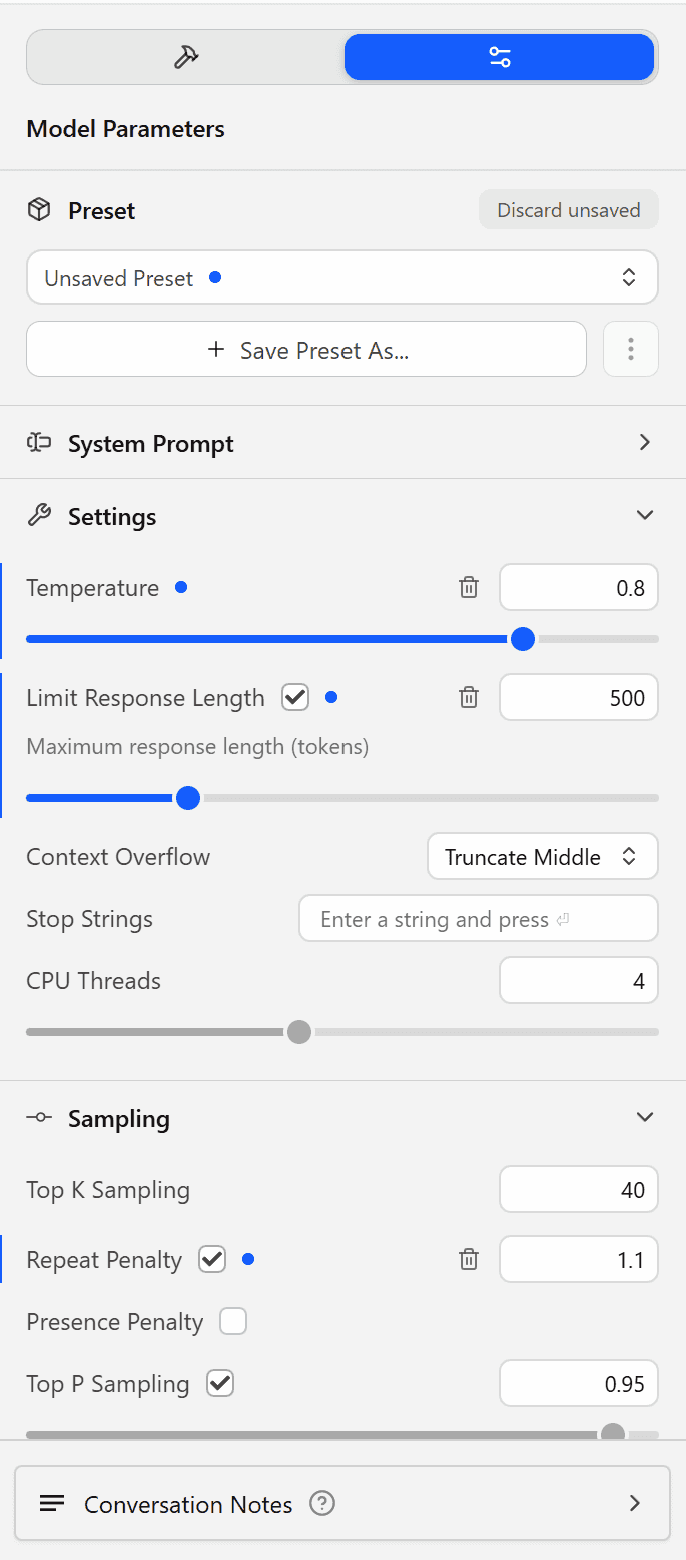
Useful controls you’ll see there:
| Control | What it does |
|---|---|
| Preset | Save and recall combinations of settings |
| System prompt | Instructions or persona applied across the session |
| Temperature | Higher = more varied; lower = more deterministic |
| Limit response length | Cap tokens per reply (e.g. 500) |
| Context overflow | What to do when the conversation exceeds context — e.g. truncate middle |
| CPU threads | How much CPU to use for inference on your machine |
| Top K / Top P | Sampling filters on the next-token distribution |
| Repeat penalty | Reduces stutter and repetition in longer answers |
Blue dots on a row mean you’ve changed it from the default. For a first play, leave most values alone; nudge temperature and system prompt and see how replies change.
Your First Conversation
With google/gemma-3-4b loaded, the chat view shows the exchange, timing, and token stats under each assistant message (tokens per second, total tokens, stop reason).
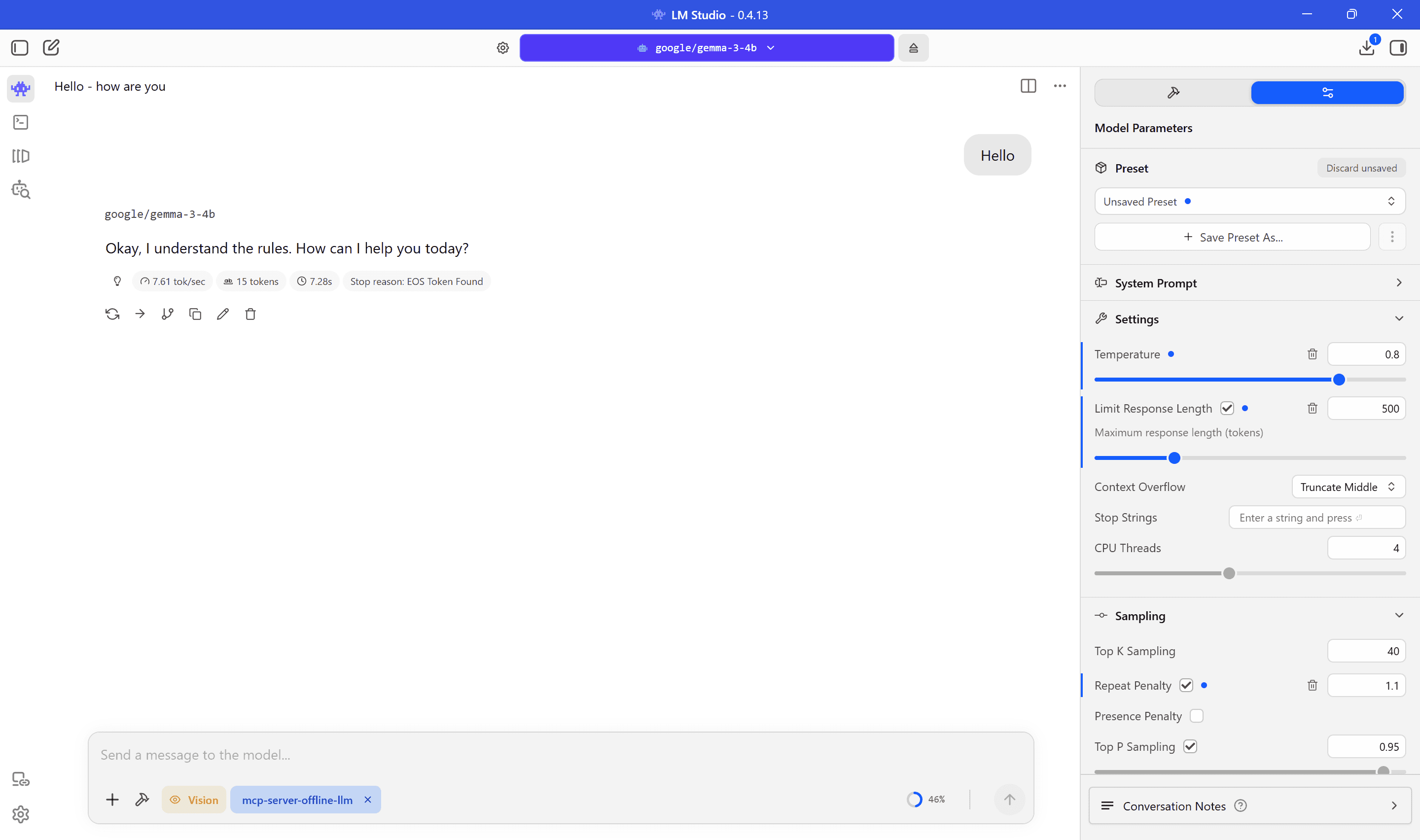
In this screenshot the model replied to a simple “Hello” — and the input area shows an MCP attachment (mcp-server-offline-llm). That’s LM Studio acting as a client to an MCP server you’ve registered, so the model can use tools defined elsewhere. You don’t need MCP to get started; it’s there when you want IDE-style integrations or custom tools.
The top bar shows the active model ID — the same string you’ll use later if you call the local API by name.
The Developer Tab — Local Server
When you’re ready to call the model from another app (Cursor, a script, your own .NET project), open the Developer tab and start the server.
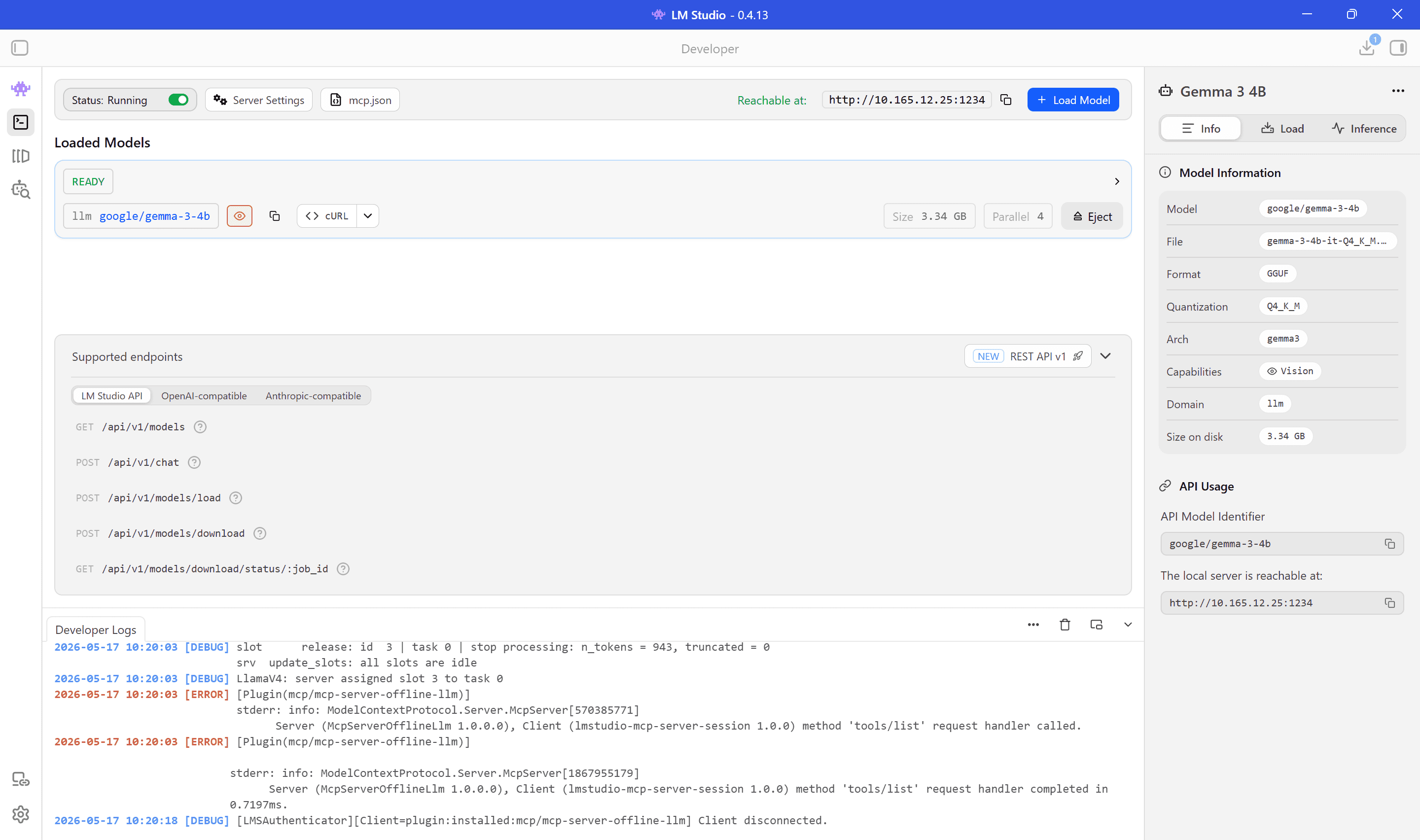
What you’re looking at:
- Status — server on or off; reachable address (often
http://127.0.0.1:1234or your LAN IP on port 1234) - Loaded models — what’s in memory, size, parallelism, Eject when you want to free RAM
- Supported endpoints — tabs for LM Studio’s API shape, OpenAI-compatible, and Anthropic-compatible routes (
/api/v1/models,/api/v1/chat, load/unload, and so on) - Developer logs — requests, MCP plugin traffic, errors
- Model information — GGUF, quantisation, architecture, capabilities (e.g. Vision on Gemma 3), and the API model identifier to pass in requests
The cURL shortcut on a loaded model is handy for a quick sanity check before you point your own code at the server.
MCP and mcp.json
If you’re experimenting with MCP, the Developer screen also surfaces server settings and an mcp.json entry point — the config LM Studio uses to spawn or connect MCP servers alongside the local model.
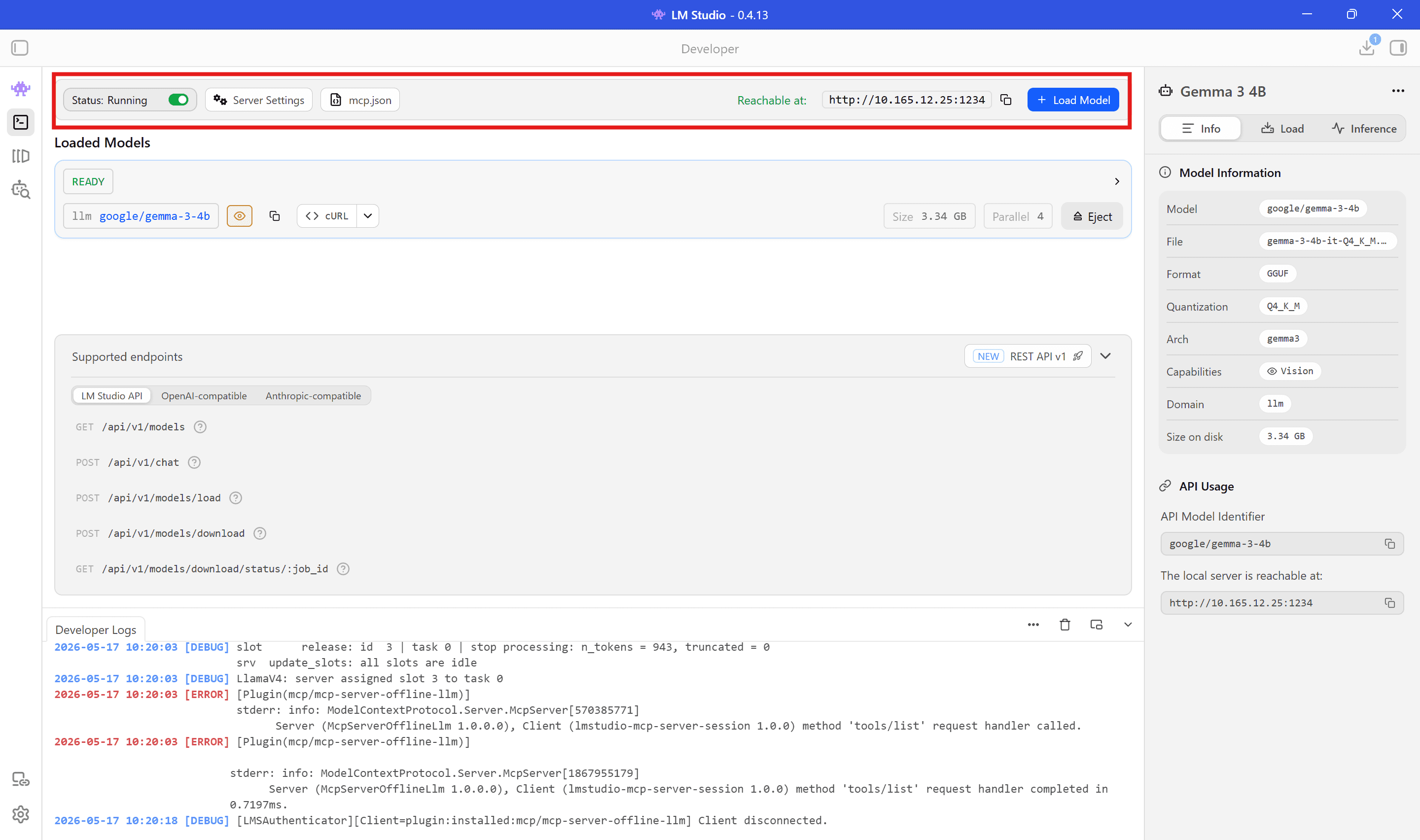
In the logs you may see lines for ModelContextProtocol.Server.McpServer and named plugins (e.g. an offline LLM tool server). That confirms the bridge is live: LM Studio hosts the model, MCP supplies tools, and the chat or API session can combine both. Building those servers in .NET is a topic for another day; here it’s enough to know where the switch lives.
A Sensible First Session
If you’re new to the whole stack, this order works well:
- Install LM Studio from lmstudio.ai
- Download a small instruct model (single-digit GB, Q4 quantisation)
- Chat — try a system prompt, watch token speed, adjust temperature once
- Open Developer, start the server, hit cURL or open the OpenAI-compatible docs in the UI
- Only then add MCP or wire up your own client
Where to Go Next
- From the UI to code — Programmatic Interaction with a Local LLM in .NET
- Another way to host the same API shape — LM Studio vs Docker Desktop for Local LLMs
LM Studio’s job is to make the first mile easy: find a model, run it, tune it, and expose it locally. Everything after that is just HTTP — but you don’t have to start there.